


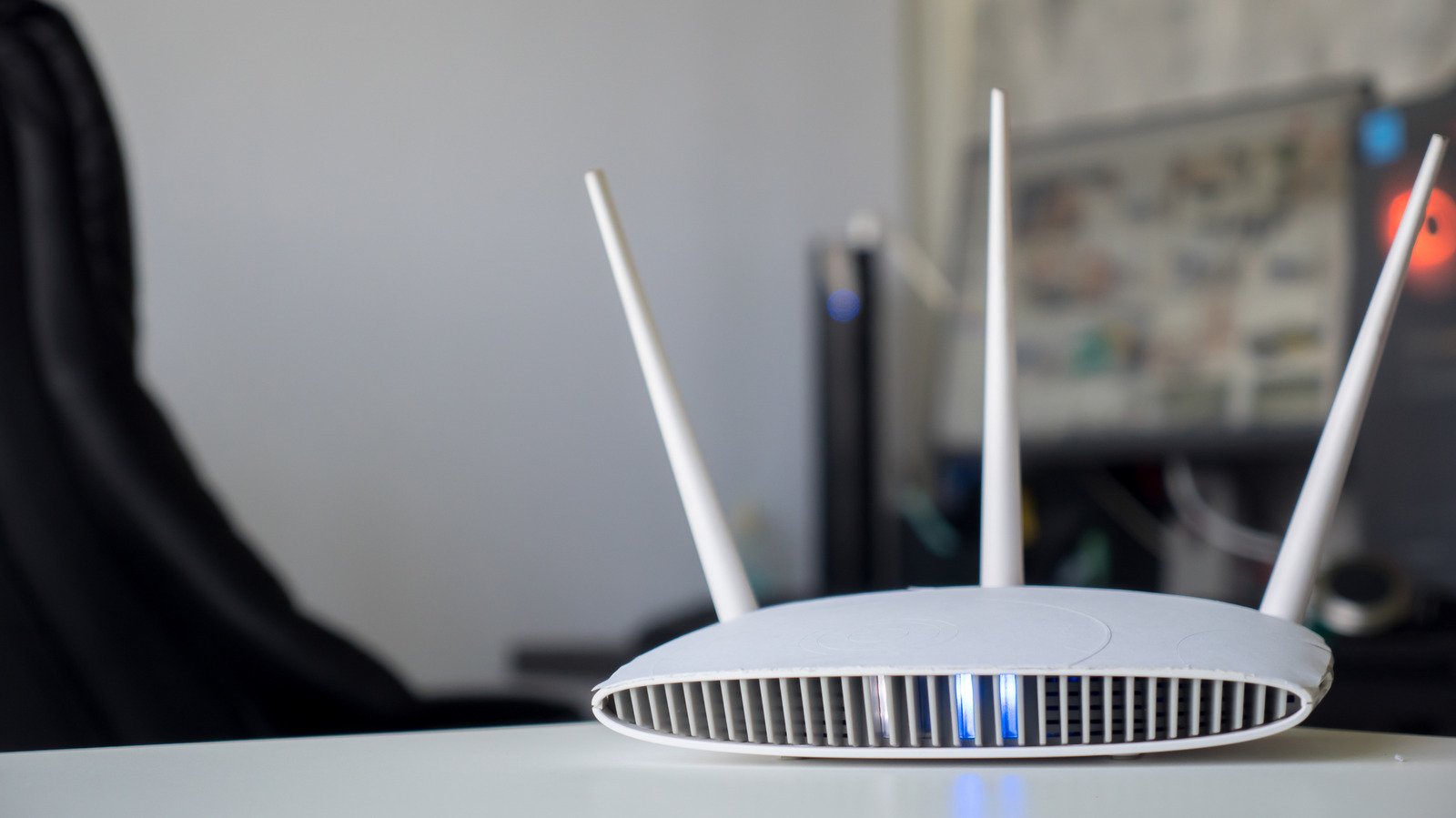
Netgear router errors demand immediate user attention
Home networking hardware is rarely intuitive, but the Netgear router provides a comprehensive visual dashboard that reveals system health at a glance. Many users struggle with intermittent Wi-Fi, unaware that the device is broadcasting its status through specific LED patterns. Distinguishing between a firmware update and a critical hardware failure is the first step toward restoring your internet speed.
Netgear Router: Interpreting core hardware status lights
The power indicator on your Netgear router is the most critical light to observe during startup. If you notice it flashing white, it serves as a warning that the onboard firmware is corrupted. A blinking amber light is usually benign, signaling that the device is in the middle of an update, but if that light persists for more than ten minutes, it suggests a interrupted upgrade process that requires a manual reset.
Understanding the Netgear router connection symbols helps isolate problems between your ISP and your local hardware:
- Internet Icon Off: Check your physical Ethernet cable connection to the modem.
- Solid White/Green: The connection to the modem is active and stable.
- Wi-Fi Dot Blinking: The router is actively processing incoming or outgoing traffic.
- 6GHz Light: Specific to Wi-Fi 6E models, indicating the high-frequency band is active.
Why status transparency matters for users
Modern consumers demand reliable uptime, and the Netgear router design philosophy prioritizes this by offering granular feedback for different frequency bands. Unlike simplified smart hubs that hide diagnostic data, this hardware lets you pinpoint if a 5GHz band is failing while the 2.4GHz band remains functional. This level of detail is vital for households with high-density device environments where signal interference is common.
What the status indicators mean for you
If you find that your Netgear router is stuck in a boot loop or consistently displays amber lights, check for overheating or firmware updates. Most connection issues are resolved by verifying that cables are seated firmly and the device has adequate airflow. By treating your networking hardware as a visual diagnostic tool, you can avoid the frustration of dropped calls and buffering streams. Always prioritize a restart before attempting a factory reset, as the latter removes all security settings and custom network names, forcing a complete reconfiguration of your home network environment.
