


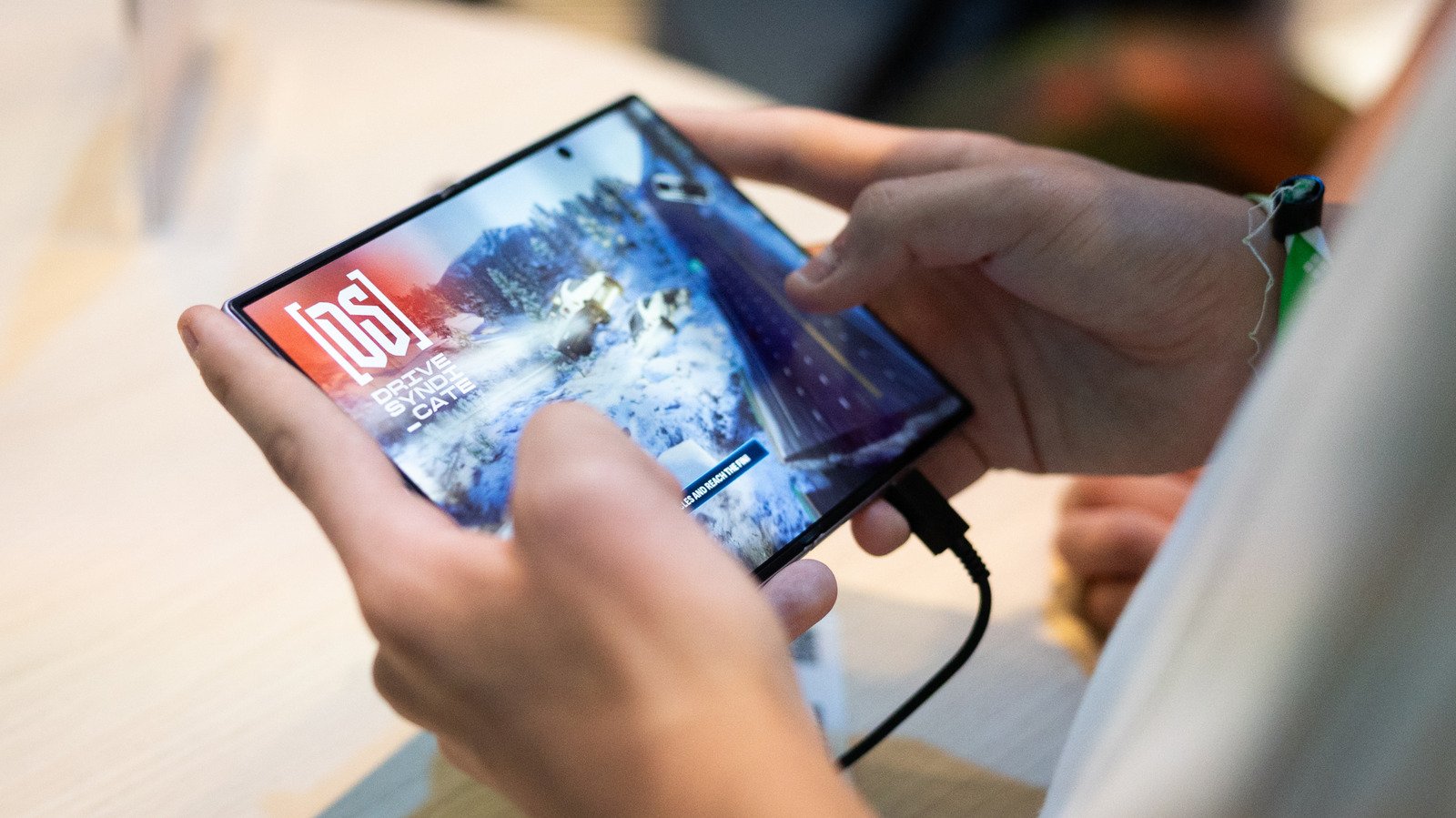
Galaxy Z Fold 8: Tackling Annoying Aspect Ratio Flaws on Foldable Screens
Getting mobile software to fit properly on a folding screen is not always straightforward. When Samsung released the Galaxy Z Fold 8, it introduced App Continuity to bridge outer and inner displays. However, some owners quickly noticed that certain third-party programs fail to scale correctly to the inner 4:3 aspect ratio. Instead of waiting for developers to push updates, community forums are buzzing with practical fixes to resolve awkward letterboxing and misaligned graphics right now.
Quick Steps to Modify Individual App Display Settings
If your favorite programs look stretched out or cropped, you can easily take control of the layout. Samsung provides a dedicated menu to force software into specific configurations. Follow these quick steps to fix your view:
- Navigate to Settings on your device.
- Tap Display and select Aspect ratio.
- Locate the troublesome app in the list.
- Toggle your preferred view to full screen, 4:3, or 16:9.
Another shortcut involves pressing and holding the app icon on your home screen. Tapping the info button in the top right reveals a dedicated app aspect ratios menu where you can update settings on the fly. Because background services might cache old layouts, a quick app restart ensures the changes take effect immediately.
The Bottom Line on Foldable Software Optimization
While manual tweaking requires a bit of patience, the overall viewing experience on the Galaxy Z Fold 8 justifies the minor setup hassle. Improved panel dimensions drastically cut down on wasted black space during video playback. By taking advantage of these built-in software controls, you can completely eliminate awkward visual glitches and enjoy seamless multitasking across your entire display.
For full official background and direct documentation, read the source coverage on Engadget.com Reporting.
